New to reporting barriers? Start here. Share what you noticed, in your own words, and add photos if you can.
You do not need to be an expert. A report without photos or measurements is still welcome.
What are barriers?
A barrier is something that makes it difficult or impossible to get onto a route or travel along it. It might be an entrance designed to control access, a problem with the path itself, or something temporarily blocking the way.
The same place can be easy for one person and unusable for another. Wheelchairs, mobility scooters and adapted cycles need different amounts of space, especially when turning. Tell us about your experience: you do not need to prove that a barrier stops everyone.
Examples you might encounter
These photos from the Mobility Mapper website show what different features look like. Whether they cause difficulty depends on the space available, their condition and the person using the route.
.webp)
A-frame barriers
The opening gets narrower higher up. A device may fit at wheel level but catch at its handles, armrests or shoulders.
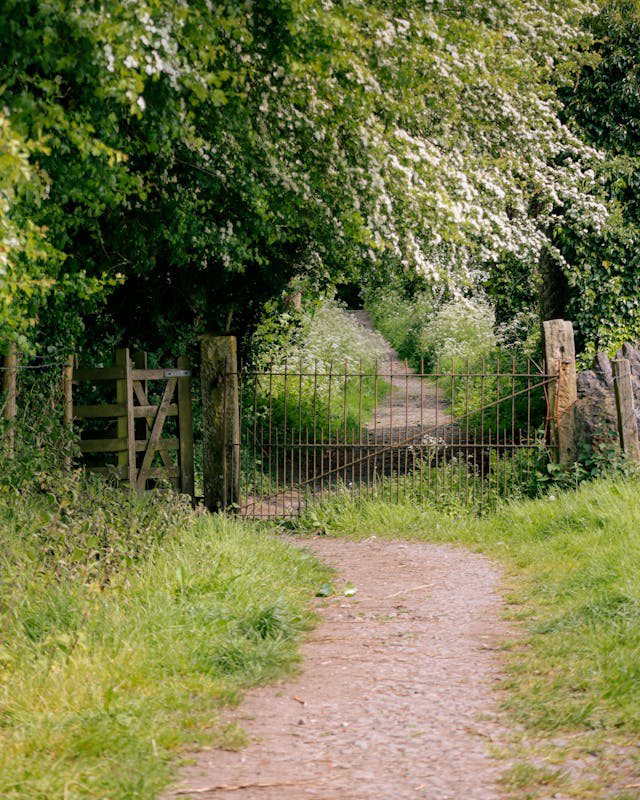
Gates
A gate can be a barrier if the opening is too narrow, the latch is out of reach, or it is difficult to open. Kissing gates can leave too little room to manoeuvre.
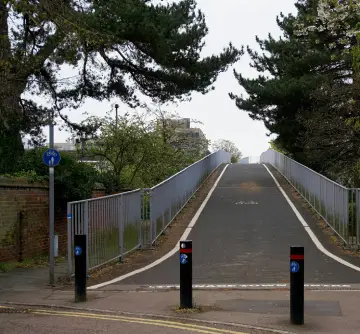
Bollards
Look at the usable gaps between posts and the space to approach them. Report a gap that restricts passage; the presence of bollards alone does not mean a path is inaccessible.
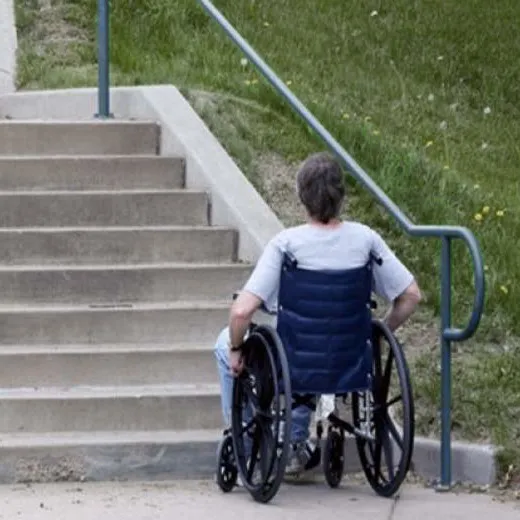
Steps
A single step or a flight of stairs can interrupt an otherwise usable route. Describe the steps and whether you could find a step-free alternative nearby.
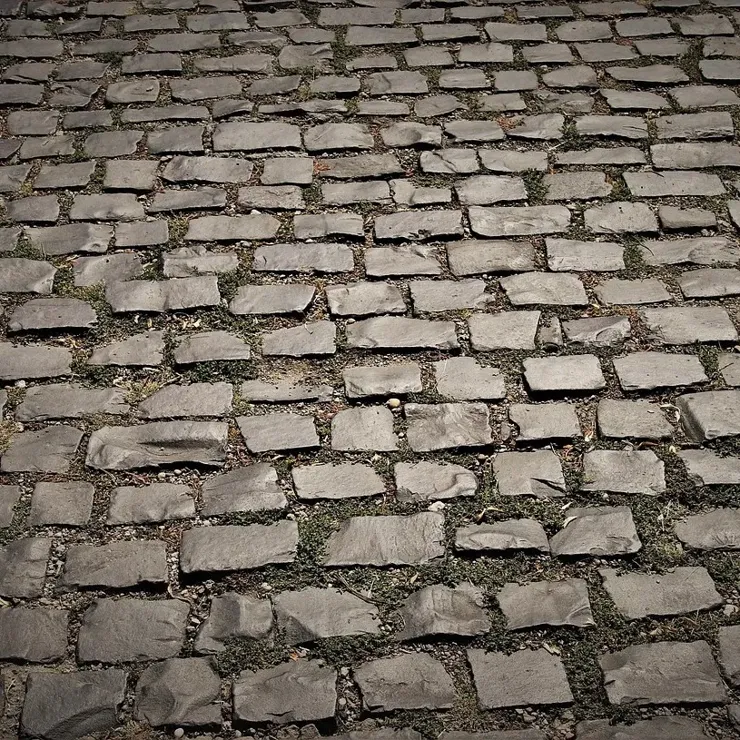
Uneven surfaces
Cobbles, cracks, loose material or damaged paving can make wheeling difficult. Describe what you encountered and how it affected your journey.
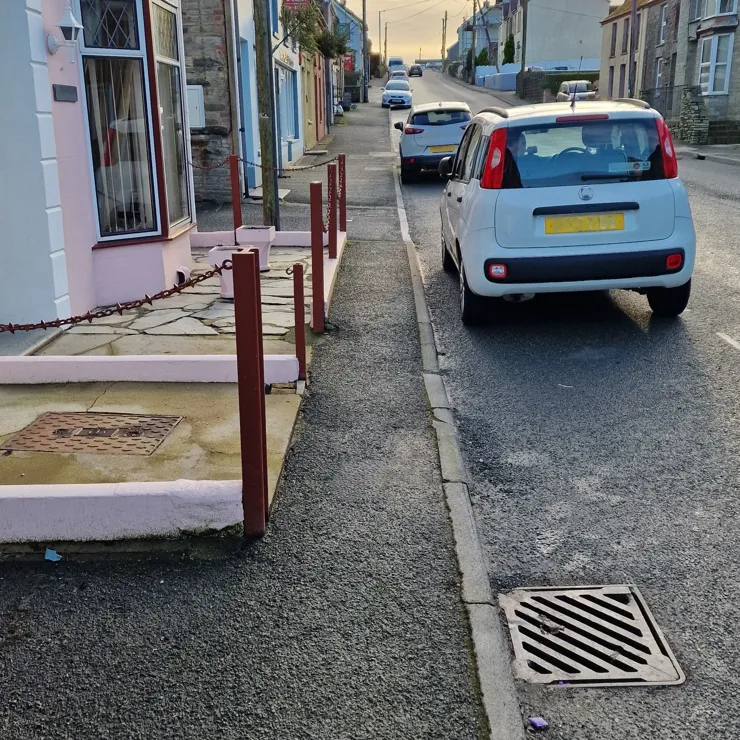
Narrow paths
A path may leave too little space to pass or turn. Explain where it narrows and whether an obstruction reduces the available space.
Chicanes and other obstacles
Chicanes are staggered barriers that make you turn as you pass through. Even if each gap is wide enough, there may be too little room between them for your device to turn.
Steep slopes, difficult crossings, overgrown vegetation, parked vehicles and roadworks can also interrupt a journey. The next section explains what to report in the app, including the separate option for dropped-kerb problems.
For more on physical access barriers, see Walk Wheel Cycle Trust’s “What are barriers?” guide.
What can I report?
Report something that makes a path, pavement or crossing difficult or impossible to use with a wheelchair, mobility scooter or other wheeled mobility device. It does not have to stop everyone, and it does not have to be on the National Cycle Network.
Examples include steps, steep slopes, narrow paths, rough or uneven surfaces and inaccessible crossings.
You can also report gates that are hard to open or too narrow, closely spaced bollards, A-frame barriers (a frame that narrows towards the top), and chicanes (staggered barriers that require tight turns).
Temporary obstructions count too, such as a parked vehicle or roadworks blocking the pavement. Say that they are temporary in your description. For something else, choose Other and give it a short name.
For a missing, broken, blocked or too-steep dropped kerb, use Add a dropped kerb on the map, or rate an existing dropped kerb. The barrier form’s Dropped kerb problem option also takes you to that flow.
1. Find the place
Check the map first: if the same barrier is already there, open it and confirm or update it rather than adding another report.
On the Map tab, choose Add to the map, then Report a barrier. You can also choose Report barrier while recording a journey, or Me, Barriers, Report new barrier.
Place the pin at the barrier itself and confirm the location. With a screen reader, the app uses your current location, so report while you are at the barrier. Stay somewhere safe; you do not need to try to pass through it.
2. Choose a type and describe your experience
Choose the closest barrier type. You do not need technical knowledge or measurements. If none fits, choose Other and enter a short name.
The description is optional. Useful details include what makes passage difficult, the device you were using, whether you needed help or had to turn back, and any nearby landmark that helps locate it.
For example: “Two staggered metal barriers at the park entrance. My mobility scooter fits through the gap but cannot make the turn, so I had to turn back.”
If you already know a gap’s width, include it with units and say whether it is measured or estimated. Do not guess a precise measurement or put yourself at risk to get one.
3. Add photos if you can
Photos are optional. One clear photo is useful; you can add up to three from your camera or gallery. A report without photos is still welcome.
An overview: show the whole barrier and the path approaching it, so someone can understand where it is and how they would reach it.
A detail: show the part causing difficulty, such as the narrowest gap, a step, damaged surface or gate latch.
Another angle, if useful: show the space needed to turn, or the other side of the barrier. Only do this if you can reach it safely.
Take photos from a safe, comfortable position. You do not need to leave your mobility device, enter the road or demonstrate getting stuck. Avoid including people or identifying details where possible. Faces and car number plates are blurred automatically.
4. Review and submit
Check the location, type, description and any photos on the review screen. You can edit them before submitting. When you are ready, choose Submit. Reading this guide does not submit a report; return to the app to continue.
Your report helps other people understand the route. Adding it to Mobility Mapper is not a request for a council or landowner to repair or remove the barrier; contact the responsible organisation separately if you want to request action.
For more help, see our step-by-step app guide or screen reader guide.